| | | |

| Ericsson Internal GUIDELINES | 1 (15) | |
Prepared (Subject resp) | No. | |
EDARMCC Darrell Mcchesney | BUGS-16:031787 Uen | |
Approved (Document resp) | Checked | Date | Rev | Reference | |
BNESBCBD [Luigi Iuliano] | | 2016-10-17 | A | |
| | | | | | |
Abstract (this is another test)
The Site Design & Engineering (SDE) tool maps information collected through the SDE Mobile interface to Microsoft Excel spreadsheet files. The SDE Template Editor facilitates creating the necessary template and descriptor files, (jz was here) and also allows the user to design the layout of the SDEM user interface for Site Investigation Reports (SIR) and Quality Assurance (QA) reports. This document provides guidelines for the creation of templates that are well designed for use in the field with the SDEM Android app.
This is a test.
Contents
1 Site Survey and SDE Mobile
2 Templates and the SDE Template Editor
3 Design Guidelines
4 Training
Site surveys are performed to verify what equipment is on site, the condition of the equipment room or shelter, power and grounding systems, and transmission and timing equipment. The engineer will also evaluate the site for antenna placement, cable routes, and site dependent material. SDE Mobile facilitates this activity through an Android app that allows the engineer to collect information, take photos, mark up site sketches, and create site dependent material lists using a single tool on a tablet or smartphone[DM1].
SDE compiles an original Excel-based SIR template with what is called a descriptor file in order to create what the end user will see in the SDE Mobile app. The descriptor file also serves to map the information, photos, and sketches collected on site back to the Excel template to produce the final report.
To create the descriptor file, the SDE Template Editor is used to identify the text and information placeholders in the Excel template and to design the template user interface in SDE Mobile. The next section discusses this topic further.
Typical templates are laid out in Excel so that they appear very much like a document that can be read from top to bottom[DM2], with information grouped into logical categories: power, grounding, shelter, tower, and so on. They will often have checkboxes, tables, and fields in which to type descriptions and notes, as well as a list of photos that should be taken to aid in documenting the site. The following figures illustrate a typical SIR template.
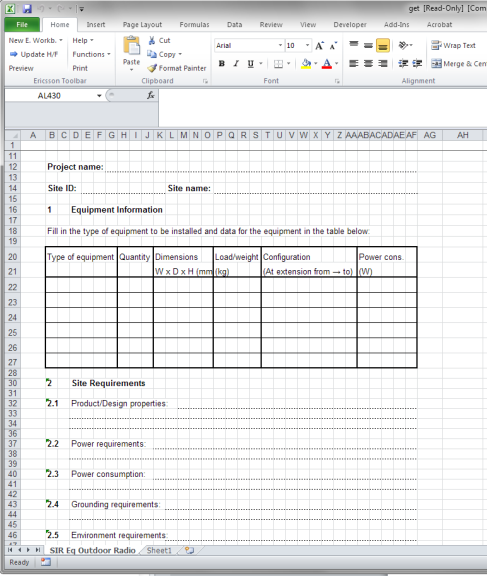
Figure 1 Site Investigation Report Illustration #1
Figure 1 shows a typical table and a number of free text lines to be filled out. Take note of how the dotted lines for the text do not correspond to a single spreadsheet cell, but appear as if the intention is to print out the template and fill it in by hand.
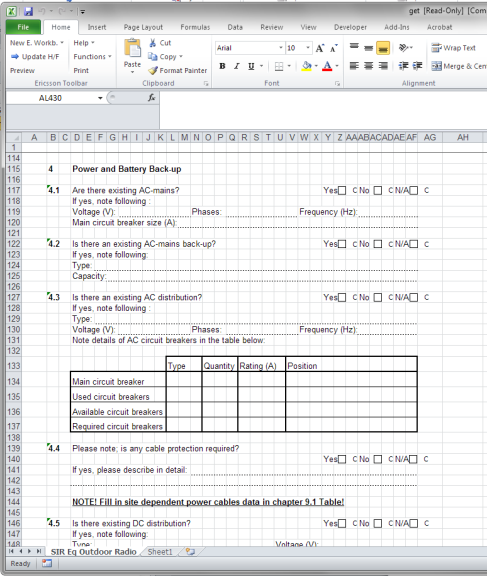
Figure 2 Site Investigation Report Illustration #2
Figure 2 shows some check boxes, free text fields and another table to fill out. Since using Excel on a tablet or other handheld device is extraordinarily difficult, especially with all of the free text fields as shown in the above figures, there must be a way to present the template on the device in a form that can be used by tapping on the screen with a couple of fingers or a stylus. This is where the SDE Template Editor comes in.
The SDE Template Editor[1] is a spreadsheet-like program that allows the user to identify text and placeholders in a template so that a descriptor file can be created. As mentioned earlier, the descriptor file defines how the SDE Mobile template user interface will appear in the app, as well as how collected information is mapped back into the original Excel spreadsheet.
Generally, an existing template is first imported into the Template Editor, though the user also has the option to create a new template from scratch. Most of the usual spreadsheet functions are available, but the ones of interest for SDE are in the Template menu as shown in Figure 3.

Figure 3 SDE Template Editor - Template Menu
Each of the menu choices enables the user to define what elements are going to be a part of the SDE Mobile template user interface and how they will work. Text boxes can be set up for free form entry or to capture information from the SDE site record and pre-populate it in the template. Other elements can be constrained to numerical entry and to a defined decimal accuracy, or to a list of choices in a combo-box[DM3]. Placeholders for pictures or documents to be embedded in the report can also be provided.[2]
The point here is that rather than providing a static spreadsheet for the Site Engineer to fill out with a lot of typing, the various functions of the SDE Template Editor can make gathering the required information easier on an Android device.
To illustrate this, consider how the original spreadsheet and SDE Mobile rendering of the same information appears in the following figures.
Test 2 here!
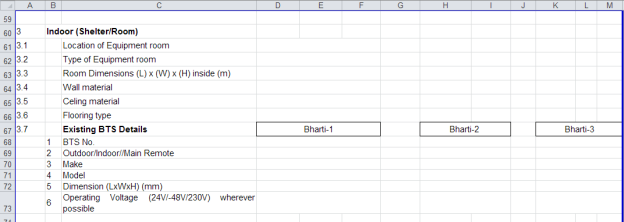
Figure 4 Original Excel Template
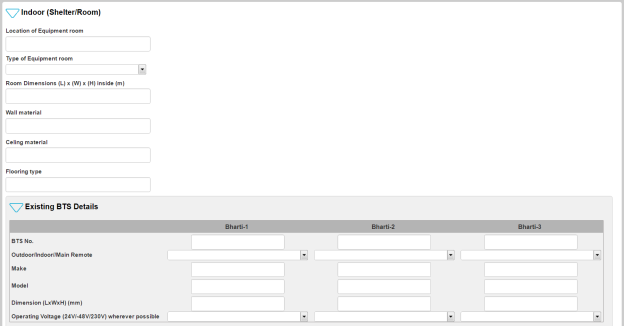
Figure 5 SDE Mobile Version[DM4]
The SDE Mobile version has various drop-down choices and fields that are a better fit for the user’s fingers or a stylus. Other features like checkboxes and photos also make for easier use.
Often, an Excel template will have information arranged by sections that make sense when reading a final report, but would have the Site Engineer walking all over the site several times if he or she is gathering the information in the same order. This not only wastes time, but also increases the risk of missing information during the survey. The SDE Template Editor not only adapts the Excel template for use in SDE Mobile, but it allows the user to rearrange how the questions, checkboxes, photos, and drop-down choices are presented in SDE Mobile, without modifying the structure of the original Excel template. This results in greater ease of use in the field as the Site Engineer can capture information and photos as he or she walks the site from one area to the next.
The next section will discuss various recommendations for adapting templates for use in SDE Mobile.
Simplicity will drive the usefulness of an SIR or QA template. Templates that are developed to be a catch-all for every possible type of deployment in a customer’s network offer a lot of flexibility, but they are cumbersome to use, even in Excel, let alone in a tablet app or another small screen format. Because time spent in the field translates directly into a project cost, templates need to be designed so that a minimum amount of time can be spent collecting information on site. The template should be prepared so that combo-boxes, check boxes, yes or no questions, and photos will capture the vast majority of the site information needed to produce the detailed site design. Remember that the SDE Mobile interface needs to be, “tap-friendly,” keeping large tables and free text fields to a minimum. The following should be considered when designing a template.
Keep the template focused on project-specific site design requirements. Sometimes customer templates are re-used from project to project, or follow a particular customer-defined format. While the latter situation can be difficult to work around and may require some negotiation, the template should focus solely on the project at hand. When a template contains large sections that are skipped because they do not apply to a particular deployment, it becomes difficult to navigate, which increases the risk of missing key information when on site.
Use question dependencies to simplify the SDE Mobile user experience. If there is no way to avoid using a large, catch-all template, consider using question dependencies in the template editor so that based on an answer to a particular question, only certain other elements of the template will appear in SDE Mobile. This feature is also useful when there are a lot of if-then-else types of questions in the template. By using question dependencies, the user will only see fields that are relevant to one particular condition while the others will be hidden.
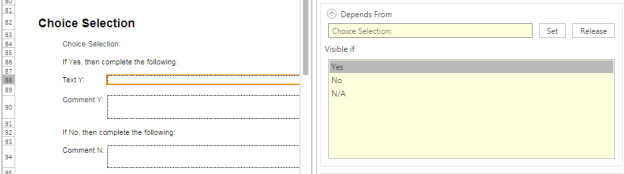
Figure 6 Question Dependency in Template Editor
As can be seen in Figure 6, the source spreadsheet contains text and comment boxes that get filled in based on a yes or no answer. The Text Y field, highlighted on the left in the spreadsheet, depends on a Yes, No, or N/A response to the question, as can be seen on the right. In SDE Mobile, if Yes is chosen as the answer, only the Text Y and Comment Y boxes will appear.
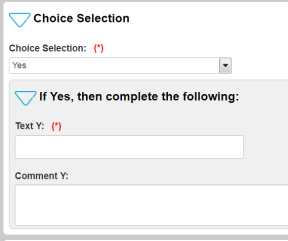
Figure 7 Choice Selection in SDE Mobile
In the case of the large catch-all template, an initial question concerning, for example, the type site configuration, can be used as the key dependency so that only the relevant questions for that configuration are seen by the SDE Mobile user.
Avoid repetitive information in multiple tabs (and multiple tabs). Often templates contain multiple tabs to organize the site information. For instance, one tab will address power systems, while another concerns antenna cabling, another one grounding, and so on. Many times, each tab contains identifying or other similar information, as if at some point it will be printed out with a header of sorts at the top of each page, much like this document has. The engineer should not be asked to fill out these fields over and over again on each tab, taking time that is better spent taking pictures and gathering site information. Instead, consider what elements of this information are relevant to the SIR or QA report and only have them appear once in the file. In the increasingly paperless office, a header on each page is not necessary.
If a customer absolutely requires the information on each tab of the spreadsheet, use the Copied From property in the template editor for a given item.

Figure 8 Copied From Property
Speaking of multiple tabs, they should generally be avoided as it is much easier to scroll from question to question in SDE Mobile than it is to navigate to a new tab. Information is easily gathered into collapsible groups in SDE Mobile, and since there is no notion of the length of a page in an Android app, scrolling from group to group takes fewer taps than opening the navigation menu, scrolling to the desired section, and tapping again to select it. Also, the risk of accidentally skipping an entire tab’s worth of information is reduced when there are fewer tabs to navigate through.
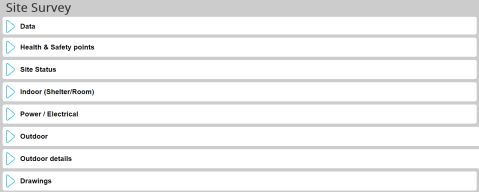
Figure 9 SDE Mobile Information Grouping
Simplify tables as much as possible. Tables are obviously a great way to organize and present information -- that is why most templates begin life as an Excel spreadsheet. However, when taking the tablet or other small screen device into account, tables can be awkward to navigate and time-consuming to fill out.
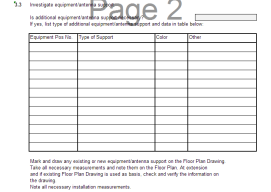
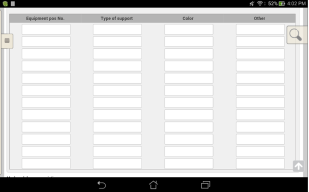
Figure 10 Tables (Original Excel, Left; SDE Mobile, Right)
In the examples shown above, the user is expected to fill out information on antenna support equipment, with up to 12 items described. This presents the user with 48 cells in which to tap to get focus and then type in the position number, item type, color, and any other pertinent information. Since typing on a tablet or phone is usually a fairly clumsy operation, at least when compared to a laptop or desktop keyboard, this table would take a long time for the user to fill out. Complicating matters is the size of the on-screen keyboard as it obscures a good portion of the table, making it difficult to use.
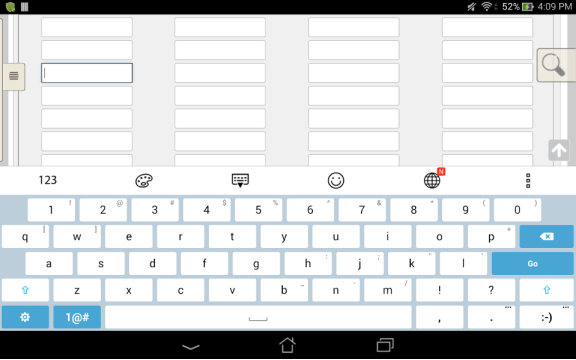
Figure 11 SDE Mobile Table with On-screen Keyboard[DM5]
Tables are difficult to avoid in some circumstances, but with up-front planning and effort, it can be made easier to use in the field. If tables such as the one in Figure 10 are needed and the equipment characteristics are known quantities, the table can be restructured into dropdown or checkbox lists that only require one or two taps from the user in order to make their choices. This has the beneficial side effect of making information gathered across many sites consistent, as the various site surveyors will all pick from the same lists.
Certain information, for example on breaker panels or grounding bars, which is often organized in a tabular fashion, can effectively be captured with a photo. As long as the photo is clear, open positions, breaker sizes, and the like can be documented swiftly and with less risk of error in a photo. Keep in mind when designing the SIR template that SDE Mobile’s ability to easily capture photos can replace a lot of manual documentation.
Speaking of photos, it is important to choose the proper resolution that you want for the photos in the final report. Keep in mind that although higher resolutions can provide better detail, they can also make the report file size difficult to deal with if there are a lot of photos in the report.
Prepopulated information can save time filling out known information. Various fields in the SDE site record can be entered into a template automatically by declaring text placeholders to be prepopulated. So rather than having the field engineer spend time entering commonly used site information like the site’s name and ID, IPB number, GPS coordinates and so on, the information is written to the template when the activity is registered in SDE Mobile. The fields that can be used are:
- Project: Name, Country, Customer, Description, Created (date and time), Created By, Last Modified (date and time), Last Modified By
- Site: Name, Country, Customer, Market, Ericsson Site ID, Customer Site ID, Address, IPB Number, GPS Latitude, GPS Longitude, Contact Name, Responsible, Site Type
- ASP Writer
Use photos and site sketches as much as possible. One of the more powerful aspects of SDE Mobile is its integration with the device’s camera. Pictures are loaded directly into the template placeholders with no intervention from the user when the SIR is generated, so gathering photographic documentation of the site is much less time consuming. Unfortunately, photo placeholders cannot be added, “on the fly,”by the technician in the field, so design the template with at least one tab for miscellaneous photos and provide plenty of placeholders. If this is done by creating a group with multiple instances, the user interface will only present as many of the placeholders as the user chooses.
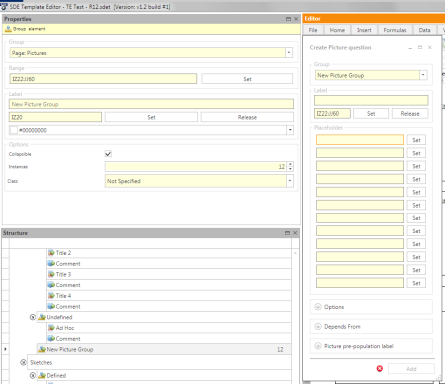
Figure 12 Creating Miscellaneous Photo Placeholders
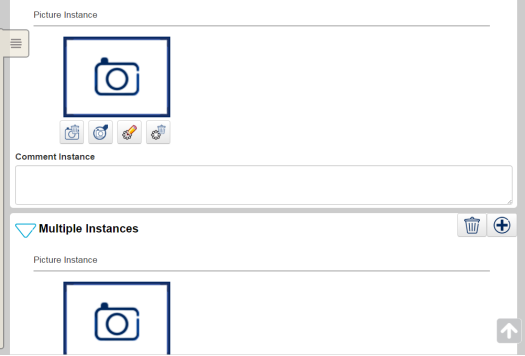
Figure 13 SDE Mobile - Miscellaneous Photos
On the SDE Mobile screen, the user taps the  button to open another placeholder. This way the user interface on the device is not cluttered with dozens of empty placeholders, many of which would not be used. Remember that the user will only be able to tap and add placeholders for as many as were defined in the template.
As mentioned earlier, photos are also a good way of documenting characteristics of grounding bars, breaker panels, and so on that are otherwise commonly captured in tables, so they make the template easier to use.
SDE also provides the facility to pass up to 10 site sketches on to the SDE Mobile application. Six sketches are defined to follow the standard site engineering drawings convention (Floor Plan Drawing, Aerial Placing Information, Situating Plan, Grounding Drawing, Mounting Drawing, and Cable Way Drawing), and four others are provided for custom use. If engineering drawings exist from a previous project, they can be imported into the site record in SDE and defined in the template such that they are loaded into SDE Mobile when the activity is registered. The user can then annotate the sketches directly in SDE Mobile, and they are subsequently incorporated into the final SIR. Using these site sketch placeholders in the template makes the exchange of information easier between the project managers and the field personnel, and keeps the information all within one application or device.
The sketch placeholders also work like photos do, so if digital drawings are not available or provided, the SDE Mobile user can make a sketch by hand, or on a paper copy of the drawing and take a photo of it, capturing the information in the report template. So whether drawings are available or not, a template should include the sketch placeholders to capture the information.
Include a comments section. This document has mentioned several times that typing should be kept to a minimum, but narrative is still an important part of presenting gathered information. Provide the user with a place to enter any and all comments, notes, thoughts, and site aspects that could not possibly have been anticipated by other questions or sections in the template. At the end of the survey, the user can sit and type away in a single box (rather than in many boxes scattered throughout), or even transfer the activity from the device to the laptop and type more comfortably there.
Organize the template’s SDE Mobile interface so that the user can gather information in a quick, logical way. One of the benefits to having the descriptor file map information back and forth between the original Excel template and the SDE Mobile user interface is that the layout of questions, photos, and so on in the mobile app can be completely different from that of the spreadsheet. Since the two media are meant for consumption on two very different platforms (desktop/laptop with a large monitor and keyboard vs. 10 inch or less touchscreen tablet or even smaller smartphone), an arrangement that makes sense in a spreadsheet may not be easy to use on a hand-held device.
Working through a questionnaire or survey tends to be a linear activity. The user starts with question number one and works sequentially, step by step, through to the last question. Excel templates often group questions together on one tab, drawings and sketches on another, and photos on yet another. If this was translated directly to the SDE Mobile interface, the field engineer would survey the entire site, answering the questions, perhaps starting in the shelter or equipment room, then looking at the power systems, then going outside to inspect the tower and external plant. Then the engineer would have to go back and walk the entire site again to collect the required pictures, duplicating a lot of effort. Alternatively, the user could tap back and forth between the questionnaire and photo sections as they walk the site, but this wastes a lot of time scrolling around to the right placeholders, and risks potentially missing something.
One of the most powerful features of the Template Editor is the ability to order placeholders for SDE Mobile, while still preserving the layout of the original Excel template. This is accomplished by rearranging the elements in the Structure window of the Template Editor.


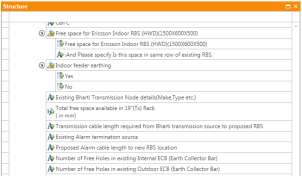
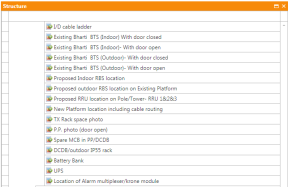
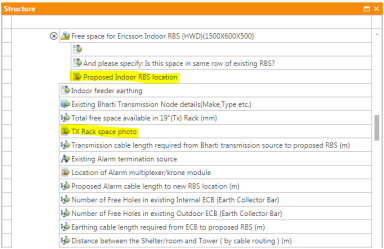
Figure 14 Revised Template Structure
By moving the photo elements in the structure as shown above, the SDE Mobile interface can be changed to make the tool easier to use on site. Since the information captured in the mobile app is still mapped through the descriptor file to fixed points in the original template, the SIR format is preserved. Consider the following:
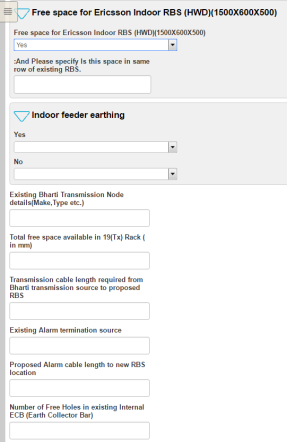
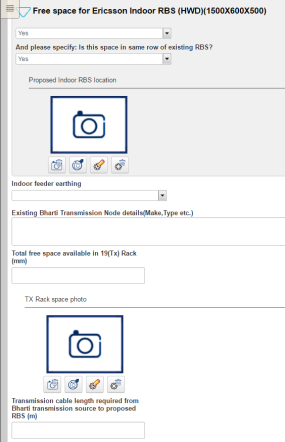
Figure 15 Integrated Photos in the Workflow
The left side of Figure 15 shows the SDE Mobile interface designed according to the structure of the original spreadsheet -- a lock-step sequential set of questions. Contrast this with the right side of the figure that shows the relevant photo placeholder embedded in the interface along with the questions. The field engineer can go over the site survey one time, answering questions and capturing photos together, while preserving the structure of the original Excel sheet that stores the photos separately from the questions. This consideration of SDE Mobile user interface design will help save time on site and reduce the risk of missing information.
Finally, templates should not be developed in a vacuum. Template development should be a collaborative effort between the Project Office, Solution Engineering, and the Template Prime. The people who are familiar with the project scope need to work together with the Project Managers, Site Engineers, Advanced Engineer, and the Tools and Methods developers in order to successfully implement an SIR template. The template needs to be thoroughly reviewed, as does its rendering in SDE Mobile, to ensure it covers only what’s needed for the project and that the Site Engineers in the field will be able to use it in SDE Mobile quickly and easily.
Template Editor training and short, “How to…” videos can (jz was here as well) be found at this link: https://sde.internal.ericsson.com/courses/courses_template_editor.html.